How To Start More Than One MSN Session

Many people have more than one MSN account and they would like to start many sessions at the same time. This was impossible with the MSN Messenger, but now you can download a patch called Messenger Plus! it will help you sign in into many MSN Messenger accounts at the same time. The following are the steps:

1- First download the patch from the Website: http://www.msgplus.net/download/

click on download now

2- Click Run to start setup

3- Click Run one more time to confirm that the software is safe

4- Click Next

5- Check the box to accept the terms..., then click on Next

6- Click Done to finish setup

7- After the Setup is done, the Configuration Wizard comes up. Just select the options that you like and click Next.

8- Now, sign in your MSN Messenger, then click on Plus!, then on Preferences & Options on the Menu Bar

9- On Preferences windows, Customize!, check the box Allow me to connect..., then click OK

That's all you can do to load many MSN sessions. Enjoy!

Easy Steps to Make WIN XP Faster

hi, I have some steps that may help make Windows XP faster:
1- Memory upgrade: if you haven't done so, adding memory to your computer can make your computer faster. you can get memory upgrade with reasonable prices from http://www.crucial.com/ . They have a useful online tool that can detect which type of memory is suitable for your computer. They have also a small video tutorial which shows how to install memory.
2- Disk Defragmentation: installing/uninstalling programs usually leaves files scattered in a fragmented manner. You need to use Disk Defragmenter to reorganize those noncontiguous files which will increase your hard drive access speed.To launch Disk Defragmenter, click on start>All Programs>Accessories>System Tools>Disk Defragmenter
3- Reduce Visual Effects: go Control Panel>click on System>click Advanced tab>Performance>click on Settings>select Adjust for best performance
4- Disable Indexing service: open My Computer>right click on all hard drive partitions one at a time>click on properties>uncheck "allow indexing service to index the disk for the first file searching">select apply changes to subfolders and files
5- Disable unnecessary startup programs:
You can turn off programs that startup with the system to speed up Windows startup process. There are many programs that run automatically on startup such as MSN Messenger, Real Player, Adobe Reader, etc. This makes Windows slow in booting. The following steps shows how to make the startup process faster.
- Click on start>Run- Type msconfig- Click on startup tab- Now you can uncheck any programs that you want to disable at startup
6- Turn off unnecessary services: Many services start with Windows and keep running consuming too much memory eventhough we never use them. For example, few people now use the fax service from their desktop, while it starts automatically with Windows every time you log on your computer. To access Services, right click My Computer>click on Manage>Expand Services and Applications>click on Services.The following is a list of services that you can disable.-Alerter-Application Management-Background Intelligent Transfer -Clipbook-Error Reporting Service-Fast switching User-Help and Support-IMAPI CD-Burnig COM Service-Indexing Service-IPSec-Messenger-NetLogon-Network DDE-NT LMI Security Support Provider

Protect your online privacy

Anybody who has access to your computer, whether a coworker, a friend, a partner or even a PC technician, can look at the Websites you've been visiting, the information you've provided and maybe your social security too. Today, most Internet browsers save all your online activities to your computer to make it easy for you to go back to the Websites you already visited in a rapid way. They can save also words that you typed such as names, passwords, search engine keywords, and user IDs, to help you automatically complete information your are typing.
But this can be a threat to your privacy since any one can easily look at your personal infromation. Fortunately, there is an easy way to erase all your former online activities. Simply follow the following steps:


1- Open your Internet Browser (Internet Explorer or Firefox)
2- On the Menu Bar, click on Tools, and then click on Internet Options


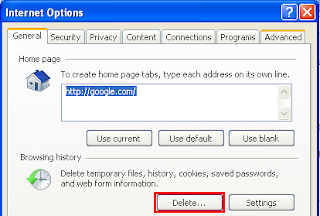
3-On General Tab, click on Delete... under Browsing history


4-Click on Delete all... on the bottom of the window


5-Select Also Delete files and settings stored by add-ons, and click Yes


Internet Explorer Keyboard Shortcuts

Keyboard shortcuts for Internet Explorer are very handy and make browsing the Net faster than using the menu options. Try these shortcuts. I put them on keyboard order as an easy way to memorize.


-ctrl+q: quick tabs

-ctrl+w: close tabs

-ctrl+r: Refresh

-ctrl+t: New tab

-ctrl+i: View favorate

-ctrl+o: Open...

-ctrl+p: Print

-ctrl+a: Select all

-ctrl+s: Save

-ctrl+d: Add a favorite

-ctrl+f: Find

-ctrl+h: History

-ctrl+j: View Feeds

-ctrl+z: Undo (text editing)

-ctrl+x: Cut (text editing)

-ctrl+c: Copy

-ctrl+v: Paste

-ctrl+b: Organize favorite

-ctrl+n: New Window

-ctrl+1,2,3..: Go to the first, second, third... tab

-ctrl+tab: Switch between tabs

-ctrl+-: Zoom out

-ctrl++: Zoom in

-ctrl+Enter: Auto-complete *.com

-Alt+left arrow key: Back

-Alt+right arrow key: Forward

-Alt+Enter: Full screen (same as F11)

-Alt+Home: Go to HomePage

-ESC: Stop loading a Webpage

Steps to Boost Windows Vista Performance


1- Turn off 3D Aero User Interface:

-Right-click My Computer

-Click on Properties

-Click on Advanced Tab

-Click on Settings... in Performance

-Choose Adjust for best performance

2- Turn off unnecessary services:

To run services on Vista, on the keyboard press the Windows + R keys. Type services.msc. There are many services that are usually unnecessary because they use up too much memory while they are running . For example, if you are not going to use Fax on your computer, it is worthless to leave the Fax service running and using system memory.

To stop a service a service, right click it and select properties. the following list is for services that you can choose to stop:

-Application Experience
-Application Information
-Application Management
-Anti-External Event Utility
-Fax
-Machine Debug Manager
-Microsoft Office Diagnostics Service
-Themes
-Windows Backup
-Windows Defender
-Windows Error Reporting Service
-Windows Search
-Turn off the Ready Boost

3- Remove unnecessary Programs:

Go to Control Panel

On the Control Panel Home

locate Programs and click on Uninstall a program

If you are using Classic View, find and click on Programs and Features

4- Disable optional startup programs:

You can turn off programs that startup with the system to speed up Windows startup process. There are many programs that run automatically on startup such as MSN Messenger, Real Player, Adobe Reader, etc. This makes Windows slow in booting. The following steps shows how to make the startup process faster.

- Press Windows + R keys

- Type msconfig

- Click on startup tab

- Now you can uncheck any programs that you want to disable at startup

5-Cleanup your Desktop

I remember one day, a friend call me and ask me to help him with his computer, which he said is becoming more and more slow. As soon as I log on to his desktop, I was amazed how cluttered it was with icons, files, photos, and other stuff. The whole desktop was full.

That was one of the reasons that make the computer slow. The system has to load all the desktop items on startup, which consumes a lot of memory.

So it is better to move most of the items that you use occasionally to another folder, and keep only few icons that you need.

Your comments are very much welcome!